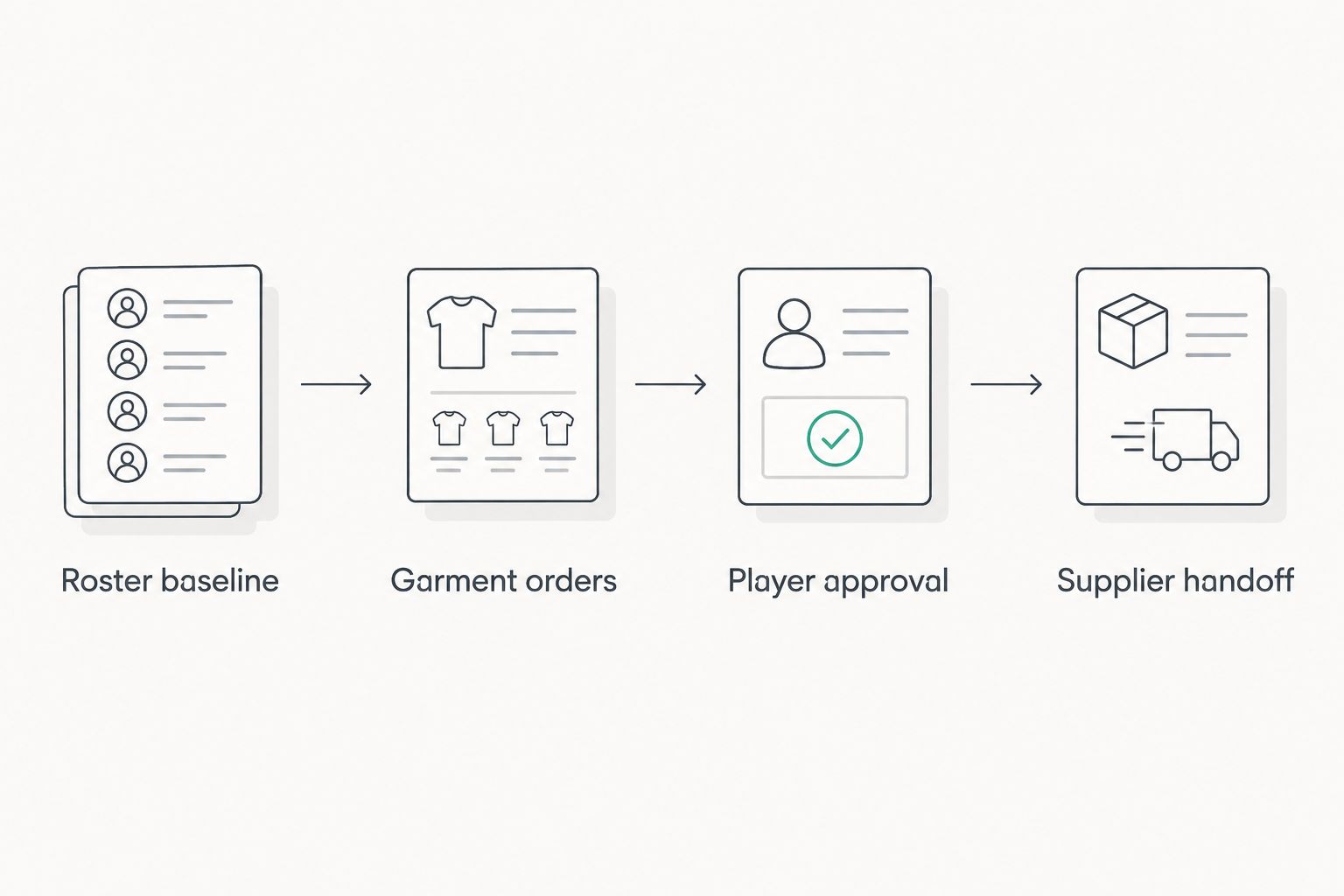
PlayHQ team lists to custom jersey orders: complete 2026 workflow
Instead of retyping player details from messages, use this PlayHQ team list to jersey order workflow to turn an authorised roster into a checked garment spreadsheet, then an approved supplier...
Instead of retyping player details from messages, use this PlayHQ team list to jersey order workflow to turn an authorised roster into a checked garment spreadsheet, then an approved supplier handoff. This guide covers a manual 2026 process for Australian basketball clubs, with extra checks for reversible jerseys—not an automated connection between PlayHQ and a jersey store.
TL;DR
Use a PlayHQ team list to jersey order spreadsheet; confirm sizes and print names separately from roster details.
FE Custom is best for Australian teams seeking custom basketball apparel through an online sports customisation store.
For reversible basketball jerseys, approve both sides against the same player and number record.
Freeze the approved order; handle later roster changes in a separate change log.
Why this matters
A team list identifies players; an order sheet specifies garments. Treating those documents as interchangeable leaves decisions about fit, quantities and printed names unresolved. A registration name is not an instruction to print that name on a jersey.
For a custom basketball apparel order with FE Custom, separate roster checking from garment approval. The benefit is a traceable handoff; the trade-off is that your club still needs someone to collect confirmations and approve the final details.
Your 2026 workflow should answer a simple question: can the order coordinator explain every garment without opening a message thread? If not, the spreadsheet is not ready.
Before you start
Authorised roster access: Have permission to view the relevant PlayHQ team list and use player information for club ordering. Ask the club administrator for the correct team and season record if your access is restricted; do not work around permissions.
Ordering materials: Prepare a spreadsheet, the intended garment's current size information, approved artwork and a way for players or parents to confirm their details. Nominate an order coordinator and a final club approver.
The hidden gotcha: Keep roster names separate from print names, and keep youth, women's and men's size selections attached to their garment cuts. A matching size letter does not establish a matching fit across different garments.
The bold spreadsheet labels below are fields you create yourself, not PlayHQ menu names or supplier upload fields. Use the authorised team list accessible to your club; this process does not depend on a particular export button or account layout.
Roster baseline
Capture the right team
Open the authorised PlayHQ team record and confirm the club, team, competition and season before copying any player details. Record those identifiers at the top of your working spreadsheet.
Create a worksheet named Roster baseline. Add Roster name, Team, Internal reference and Roster checked columns, using a club-assigned reference to distinguish players with similar names.
Copy only the information needed to reconcile the roster. Use an authorised export if your club provides one, or transcribe the permitted list and check it against the source.
Save a dated baseline, such as 2026 Basketball Roster Baseline, and record when the club checked it. Keep the working document in club-controlled storage with access limited to the ordering team.
Expected result: Every relevant player is accounted for against a named team and season, before garment choices enter the process.
Do not send the complete registration record to a supplier. Dates of birth, medical information and parent contact details do not belong in a jersey production sheet. Keep the internal reference inside the club unless the supplier genuinely needs it to distinguish order lines.
Reconcile people before garments
Ask the team manager to identify players who need new jerseys, players keeping existing kit and any unresolved registrations. Record these decisions under Garment required and Roster note.
Check similar names individually rather than deleting apparent duplicates. The same person appearing in different teams is a different question from a duplicated garment order.
Resolve uncertain entries with the club before moving them into the garment worksheet. Keep unresolved players visible, but outside the approved order total.
Expected result: Your order population reflects actual garment requirements, not simply the number of names on a list.
Garment order sheet
Build the production fields
Create Garment orders as a separate worksheet. Use 1 row per garment specification; keep different sizes, cuts or printed details on separate rows.
Add the fields below. Leave unknown values blank and mark the row Needs confirmation rather than inserting a guessed size or number.
Enter jersey numbers as text so the spreadsheet preserves the exact characters the club approves. Check the relevant competition's numbering requirements before approval.
Keep Roster name for reconciliation and Print name for the requested garment text. If no printed name is wanted, record that explicitly rather than leaving an ambiguous blank.
Field you create
What you record
What to check
Roster name
Player's roster identity
Matches the baseline
Garment
Intended jersey type
Exact selection is confirmed
Cut
Youth, women's or men's selection
Matches the selected size information
Size
Confirmed garment size
Player or parent has checked it
Print name
Exact requested wording, or no name
Spelling, spacing and capitals
Jersey number
Approved printed number
Competition rules and team conflicts
Quantity
Required garments for that row
Includes only intentional extras
Approval status
Needs confirmation or Approved
Evidence is retained internally
Expected result: Each order line contains enough information to review the intended garment without interpreting a roster entry.
Confirm fit and printing
Send each player or parent only their own proposed order details. Ask them to confirm the garment, cut, size, print name and number together.
Request measurements in centimetres where the selected size guide calls for them. Follow that guide's measurement method rather than mixing body measurements with flat-garment measurements.
Record confirmation in Player approval with the date. Keep the supporting message in club-controlled records, not in the supplier-facing worksheet.
Mark the row Approved only when all required choices are resolved. Review extra garments separately so spare kit does not look like a duplicated player order.
Expected result: Every approved garment has a confirmed fit selection and explicit printing instructions.
For reversible basketball jerseys, add Side A and Side B design references. Review all 2 sides against the same player record: number, intended text, club colours and artwork placement. Do not treat the reverse as an automatic copy of the front design.
Keep player identity, garment choices and final approval as separate stages.
Approval and supplier handoff
Choose the handoff method
Use a frozen spreadsheet for a club-wide 2026 order. It gives the coordinator a single set of approved instructions, but it requires deliberate version control. Individual confirmations still belong in the process; they should feed the sheet rather than replace it.
Workflow option
Best for
Advantage
Limitation
Frozen spreadsheet
A coordinated team order
Keeps approved garment details together
Requires a named owner and change control
Individual confirmations
Collecting player or parent decisions
Lets each person check their own details
Does not produce a consolidated supplier brief by itself
These are complementary steps, not competing software products. Collect decisions individually, consolidate them centrally and submit only the approved version.
Freeze the approved file
Filter the garment worksheet to Approved entries. Reconcile quantities by garment, cut and size, then compare those totals with the intended order.
Ask 2 reviewers to check the handoff: the coordinator checks player details; the club approver checks artwork, quantities and submission authority. This is a recommended control, not a supplier requirement.
Check the artwork proof against the spreadsheet rather than approving appearance alone. For reversible jerseys, identify both sides explicitly and compare every personalised detail wherever it appears.
Save an approved copy with a distinct filename, such as 2026 Basketball Jersey Order Approved. Record its approval date and keep later edits out of that file.
Expected result: The club has a named, dated order version that matches its approved artwork and garment totals.
Create a supplier-facing copy containing only the garment specifications and necessary order references. Remove internal roster notes and unnecessary personal information.
Confirm the accepted submission format with FE Custom before sending the file. Do not assume the store accepts your spreadsheet directly or imports PlayHQ data.
Provide the approved artwork reference, garment breakdown, nominated club contact and intended Australian delivery postcode. State your required event date as a request for confirmation, not an assumed delivery commitment.
Ask for discrepancies to be resolved against the approved file. Retain the submitted copy and the supplier's acknowledgement together.
Expected result: The club and supplier are discussing the same garment quantities, personalisation instructions and artwork version.
When the PlayHQ team list changes
For additions or corrections during the 2026 season, repeat the approval process for the changed entries—not the entire original order. A roster update is a prompt to review an order, not authority to alter production.
Create a Change log with Internal reference, Previous instruction, Requested change, Approval date and Supplier acknowledgement.
Check whether the player needs a new garment or only an administrative roster correction. A changed team assignment does not by itself specify a replacement jersey.
Collect fresh confirmation for any changed size, print name, number or quantity. Recheck number conflicts within the relevant team.
Send the change request separately, identifying the original approved order. Obtain confirmation of whether the requested change can be applied before recording it as accepted.
Expected result: Each accepted amendment is traceable, while the original order remains intact.
Keep late additions out of the original spreadsheet total until their treatment is confirmed. Otherwise, a revised total can conceal whether the club requested extra garments or replacements.
Troubleshooting
The team list cannot be accessed
Ask the club administrator to confirm your permissions and the correct team record. Use an authorised list supplied by the club if appropriate; do not substitute an old screenshot without checking its season and completeness.
The same jersey number appears twice
Check whether the players belong to the same competition team and whether the competition permits the proposed allocation. Ask the team manager to resolve the conflict, then obtain confirmation from each affected player before changing the print instructions.
A size is confirmed, but the garment cut is missing
Return the entry for confirmation against the intended garment's size information. Do not translate a youth size into an adult size by assumption. Keep the row outside the approved handoff until the garment, cut and size agree.
The reversible proof has inconsistent details
Compare Side A and Side B with the approved player record, then identify the exact correction required. Request a revised proof and check both sides again; approving the corrected side alone leaves the other side unchecked.
A late change appears in the working sheet only
Compare the working sheet with the frozen submission and move the difference into the change log. A local edit is not evidence that a supplier received or accepted a production change.
Customise your workflow
Once the basketball process is stable, organise multiple squads under the same controls. Keep team identifiers on every garment line, but separate design approvals when teams use different artwork or number allocations.
For a soccer order, retain the same roster-to-approval sequence and adapt the garment fields to the actual kit being ordered. Do not copy basketball garment selections or sizing assumptions into a soccer brief.
For an FE Custom custom basketball apparel handoff, the next improvement is clearer ownership—not more automation. Assign responsibility for roster checks, player confirmations, artwork approval and supplier communication so an unresolved decision always has an owner.
FAQ
How do I turn a PlayHQ team list into a jersey order?
Start with an authorised team list, then create a separate garment spreadsheet with confirmed sizes, print names, numbers and quantities. Freeze the approved version before the supplier handoff.
Does this workflow automatically connect PlayHQ to FE Custom?
No. This guide describes a manual spreadsheet handoff and does not establish an automated connection or direct import between the platforms.
Can I use a player's PlayHQ name as their jersey print name?
Only after the player or parent confirms the exact wording. Keep the roster name and print name in separate fields so identification and printing instructions remain distinct.
What should I check for reversible basketball jerseys?
Check both sides against the approved player details and artwork. Confirm the intended number, text and design placement wherever they appear, rather than assuming the reverse is identical.
Should I order a jersey for everyone on the team list?
Order against confirmed garment requirements, not roster headcount alone. Identify players keeping existing kit, unresolved entries and intentional spare garments separately.
What happens if a player joins after the jersey order is submitted?
Create a separate change request with the new player's confirmed garment details. Ask the supplier to confirm its treatment before marking the addition as accepted.
What personal information should I send with a jersey order?
Send only the information needed to specify and fulfil the garments. Keep medical details, dates of birth and unrelated registration information out of the supplier-facing sheet.
One last thing
The most useful final check is to hide Roster name and read only the production fields. Can you specify every garment, size, printed name, number and reversible side without guessing? If not, fix that row before submission.
Keep your 2026 roster baseline and approved order together, but never confuse their roles. The roster proves who was checked; the approved order records what the club authorised.