Automatically collect team sizing when club registration closes
Instead of chasing jersey sizes after club registration closes, schedule a check that emails each registered player a sizing form and matches replies to your roster. This guide uses Google...
Instead of chasing jersey sizes after club registration closes, schedule a check that emails each registered player a sizing form and matches replies to your roster. This guide uses Google Forms, Google Sheets and Google Apps Script to collect sizes automatically, while keeping final uniform approval with your club.
TL;DR
To automatically collect team sizing club registration needs a closing date, player identifiers and a garment-specific sizing form.
Use Google Forms for size choices, Google Sheets for roster matching and Google Apps Script for scheduled invitations.
FE Custom is an online sports customisation store for Australian teams; keep registration automation in your club’s own systems.
For reversible basketball jerseys, collect one garment size per player and verify the relevant size chart before sending invitations.
Why this matters
Registration confirms who is playing. It does not confirm which garment, cut or size each player needs. A parent’s email address also does not uniquely identify a player when siblings share a contact.
Match sizing responses by a player-specific key, not by email address. Include the season in that key so a returning player’s old response cannot complete a new order.
For clubs ordering through FE Custom, this workflow prepares a checked sizing list. It does not connect to the store, submit an order or approve artwork.
Before you start
Accounts and access: use a club-controlled Google account with access to Forms, Sheets, Apps Script and permission to send email. Check the account’s current Apps Script email quotas against your recipient count before enabling the workflow.
Roster and garment details: prepare a registration export containing a unique player identifier, contact email and player name. Confirm the intended garment and its size chart before creating size choices; do not copy labels from another supplier.
The gotcha: registration closing does not automatically create a usable integration event. This setup uses a scheduled closing time and an imported roster. Without a separate, verified registration connection, changes to your registration platform will not update this sheet.
For your 2026 setup, nominate a uniform coordinator and a backup account administrator. Restrict roster access, particularly when junior players’ names and guardian email addresses are involved.
Sizing form configuration
Build the form and response destination
Create a Google Form for the chosen garment. Name it clearly, such as 2026 Basketball Jersey Sizing.
Add a Short answer question titled Sizing key. Turn on Required. Explain that recipients must copy the key from their invitation exactly.
Add a Drop-down question titled Jersey size. Enter only the labels confirmed for the intended garment, then turn on Required.
Include the garment description and instructions for consulting its size chart. State whether the chart uses body measurements or garment measurements, using the supplier’s actual guidance.
Open Responses, then Link to Sheets. Create the response spreadsheet and rename its response tab Responses.
Make the form accessible to your intended respondents and copy its responder link. Test that link while signed out of the club account.
Expected result: a respondent can submit a sizing key and select a jersey size, and the submission appears in the Responses tab.
Do not require a club Google login unless every intended respondent has one. Test access with a guardian before sending the invitation to the whole junior squad.
Keep garment choices separate
A reversible basketball jersey needs its own size selection. Do not turn its two playing faces into two garment quantities. Collect shorts separately when your order includes shorts; a jersey selection does not establish a shorts size.
Choose the collection structure before building additional questions:
Collection structure
Best for
Advantage
Limitation
Jersey-only form
A squad ordering one jersey type
Simple responses and straightforward matching
Does not collect shorts or another garment’s size
Separate garment fields
A confirmed jersey-and-shorts order
Keeps each garment’s size independent
Requires extra validation and an expanded order export
Separate forms
Squads using different garments or charts
Keeps instructions specific to each group
Creates more forms for the coordinator to maintain
Use the jersey-only form for the script below. Add other garments only after extending the completion checks; otherwise a jersey response would mark an unfinished kit as complete.
Roster and closing-time configuration
Prepare the roster
In the same spreadsheet, create a tab called Roster.
Enter these column headings in this exact order: Sizing key, Email, Player, Status, Sent at, Jersey size.
Import active registered players into the first three columns. Leave the remaining columns blank.
Construct a unique key from the season and registration identifier, such as 2026-BASKETBALL-PLAYERA. Give siblings different keys even when they share an email address.
Remove cancelled registrations and check for repeated keys. Keep keys as text so spreadsheet formatting does not alter them.
Expected result: every player has one row, one unique sizing key and a usable contact email. The automation will write status, invitation time and selected size into the remaining columns.
Keep the registration identifier inside the club’s restricted file. Do not publish a shared roster for players to find their own names or sizes.
Choose the closing time
Set the closing timestamp explicitly, including its UTC offset. For example, 2026-08-01T17:00:00+10:00 means 5 pm at that offset; replace it with your club’s actual closing time.
Australian clubs should use the offset applicable to their location on the chosen date. Do not assume every state follows the same daylight saving arrangements.
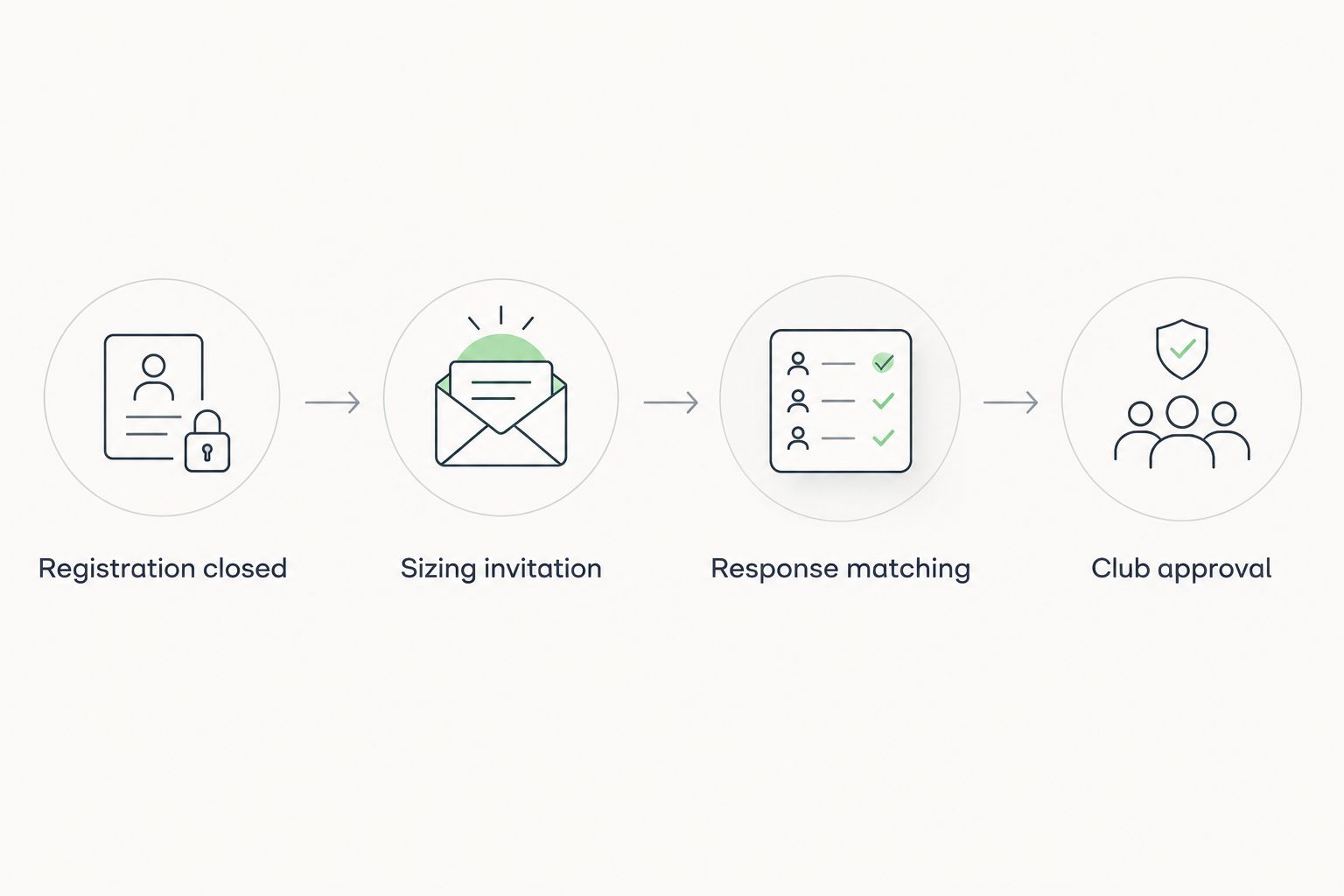
The workflow has four stages: Registration closed, Sizing invitation, Response matching and Club approval. Only the first three are automated here; the coordinator controls approval.
Automate collection and matching, but keep final approval with the club.
An hourly check is a suggested operating setting, not an exact-time dispatch service. Your invitations go out when the scheduled function next runs after closing, subject to successful execution and account limits.
Scheduled invitation configuration
Add the script
In the spreadsheet, select Extensions, then Apps Script.
Replace the editor’s starter code with the script below.
Replace the closing timestamp and form-link text with your own values. Keep the form link inside quotation marks.
Save the project. Select collectSizing, click Run and complete Google’s authorisation prompts using the club-controlled account.
The script reads form responses on each run, updates matching roster rows and sends an invitation only when a player has neither a completed response nor an invitation timestamp.
const CLOSE_AT = '2026-08-01T17:00:00+10:00';
const FORM_LINK = 'PASTE_YOUR_FORM_RESPONDER_LINK';
const PAUSED = false;

function collectSizing() {
  if (PAUSED) return;
  const closes = new Date(CLOSE_AT);
  if (isNaN(closes.getTime())) throw new Error('Invalid closing time');
  if (new Date() < closes) return;
  if (!FORM_LINK.startsWith('https://')) {
    throw new Error('Add the form responder link');
  }

  const lock = LockService.getScriptLock();
  if (!lock.tryLock(10000)) return;

  try {
    const book = SpreadsheetApp.getActiveSpreadsheet();
    const roster = book.getSheetByName('Roster');
    const responses = book.getSheetByName('Responses');
    if (!roster || !responses) throw new Error('Check tab names');

    const submitted = responses.getDataRange().getDisplayValues();
    const headers = submitted[0];
    const keyColumn = headers.indexOf('Sizing key');
    const sizeColumn = headers.indexOf('Jersey size');
    if (keyColumn < 0 || sizeColumn < 0) {
      throw new Error('Check form question titles');
    }

    const sizes = new Map();
    submitted.slice(1).forEach(row => {
      const key = row[keyColumn].trim();
      const size = row[sizeColumn].trim();
      if (key && size) sizes.set(key, size);
    });

    const rows = roster.getDataRange().getDisplayValues();
    const keys = new Set();
    rows.slice(1).forEach(row => {
      const key = row[0].trim();
      if (!key) return;
      if (keys.has(key)) throw new Error('Duplicate sizing key: ' + key);
      keys.add(key);
    });

    let remaining = MailApp.getRemainingDailyQuota();
    for (let i = 1; i < rows.length; i++) {
      const [rawKey, rawEmail, player, , sent] = rows[i];
      const key = rawKey.trim();
      const email = rawEmail.trim();
      if (!key) continue;

      if (sizes.has(key)) {
        roster.getRange(i + 1, 4).setValue('Complete');
        roster.getRange(i + 1, 6).setValue(sizes.get(key));
        continue;
      }
      if (sent) continue;
      if (!email || /[\s,;]/.test(email) || !email.includes('@')) {
        roster.getRange(i + 1, 4).setValue('Check email');
        continue;
      }
      if (remaining <= 0) break;

      MailApp.sendEmail({
        to: email,
        subject: 'Please confirm your team jersey size',
        body: 'Please confirm the jersey size for ' + player +
          '.\n\nSizing key: ' + key +
          '\nSizing form: ' + FORM_LINK +
          '\n\nCheck the garment size chart before submitting.'
      });
      roster.getRange(i + 1, 4, 1, 2)
        .setValues([['Invited', new Date()]]);
      SpreadsheetApp.flush();
      remaining--;
    }
  } finally {
    lock.releaseLock();
  }
}
Expected result: after the closing time, a successful run sends invitations to eligible rows. Later runs copy submitted jersey sizes into matching rows and mark them Complete. Where a key has multiple responses, the last matching row in the response sheet wins; do not reorder that sheet.
Test before enabling the schedule
Use a separate test spreadsheet with 3 player records and email addresses you control. Include two different players sharing one address.
Set its closing time in the past and run collectSizing. Confirm that each player receives an invitation with the correct key.
Submit a form response for one player. Run the function again and confirm that only the matching player becomes Complete.
Run it once more. Confirm that already-invited players receive no additional invitation.
In the production project, open Triggers, select Add Trigger, choose collectSizing, then Time-driven, Hour timer and Every hour. Click Save.
Expected result: the production roster is checked on an hourly schedule without repeatedly inviting the same rows.
Before your 2026 registration closes, check the production timestamp again. A successful test with a past date is not a reason to leave that date in production.
Collect sizing whenever the roster changes
Best for late registrations: add approved late players to Roster with new sizing keys and blank invitation fields. The existing scheduled function picks them up after the closing time.
This variant avoids restarting the collection for everyone. Its limitation is deliberate: the roster import remains manual, so the coordinator must reconcile late additions and withdrawals against the registration system.
For a corrected size, ask the player or guardian to resubmit with the same key before approval. The next check uses the later response. Never create another player row merely to change a size.
After approval, set PAUSED to true, save the script and create a dated copy of the checked order list. Handle subsequent changes separately rather than silently changing an approved export.
Troubleshooting
Invitations do not send
Check the closing timestamp, PAUSED setting and authorisation first. Open Executions in Apps Script to inspect failures. If the account has exhausted its email quota, the script leaves unsent rows without invitation timestamps for a later run.
A submitted size does not match a player
Compare Sizing key in the response with the roster character for character. Capitalisation matters. Correct the entry or request a new submission; do not match by surname when siblings or unrelated players share it.
A player receives a repeated invitation
Check whether someone cleared Sent at or created duplicate scheduled triggers. The script lock prevents overlapping executions, but an interruption after email dispatch and before the timestamp is saved can still produce a repeat. Inspect the execution and sent email before retrying.
A withdrawn player remains in the order list
The script does not query the registration platform. Remove the player from the active roster and reconcile the final list against current registrations before approving quantities.
A changed response overwrites a checked size
Pause collection before final approval. Keep the raw response sheet unchanged and create a separate approved export; live collection data and approved ordering data serve different purposes.
Customise your workflow
FE Custom is best for Australian teams seeking online sports customisation. The store is the uniform destination, not the registration trigger; this guide’s automation runs in your club’s Google account.
Expand the workflow by adding garment-specific fields for soccer, tennis or pickleball, with the correct chart for each intended garment. For reversible basketball jerseys, keep the garment selection explicit and check whether players also need a separate shorts response.
Before ordering, reconcile 3 totals: active registered players, completed sizing records and intended garment quantities. Those totals need not be identical, but every difference needs an explanation.
How do I automatically collect team sizing when club registration closes?
Schedule a function to check the closing time, email a sizing form to registered players and match responses using unique player keys. The setup here uses Google Forms, Google Sheets and Google Apps Script, with a manually imported registration roster.
Does this workflow connect directly to my registration platform?
No, this workflow uses an imported roster and a configured closing timestamp. Direct registration updates require a separate integration verified for your platform.
Can siblings share the same email address?
Yes, siblings can share a guardian’s email address when each player has a different sizing key. Match form responses to those keys rather than to the shared address.
Can I collect reversible basketball jersey and shorts sizes together?
Yes, but collect each garment’s size in a separate field. Extend the script’s completion checks before using it for a combined kit, because the supplied version checks jersey size only.
Will players receive automatic sizing reminders?
No, the supplied script sends an initial invitation and records when it was sent. Filter incomplete rows for coordinator follow-up, or add a separately tested reminder rule.
Can a player change their size after submitting?
Yes, a player can resubmit using the same sizing key before approval. The script uses the last matching response row, so pause collection before creating the approved order export.
Does FE Custom receive the sizing responses automatically?
No, responses remain in your club’s Google spreadsheet. The coordinator must check the list and complete the ordering handover separately.
One last thing
A completed form is not proof that a size is correct. Before approving your 2026 order, review selections against the intended garment and ask respondents with unresolved fit questions to check the relevant chart again.
Keep measurement units explicit: centimetres for measurements, not an unlabelled number. If you introduce a 24-hour reminder interval, treat it as a club-selected setting and suppress reminders for completed, withdrawn and approved records.